How to use Playlist Trimmer
Trim a playlist to what you actually need to study, then share it as a link.
1. Paste a playlist link
Copy the link of any public or unlisted YouTube playlist, paste it in the box and press Load. Every video shows up with its thumbnail, title and duration.
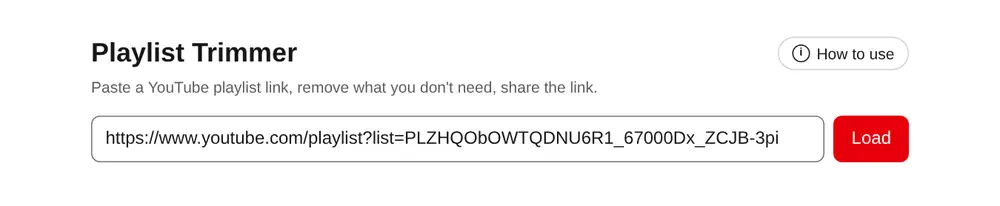
2. Delete what you don't need
Press Delete on videos that are out of syllabus. Grab the ⋮⋮ handle on the left of a video and drag it up or down to change the order (works with touch on phones too). The header shows how many videos and how much total time are left.
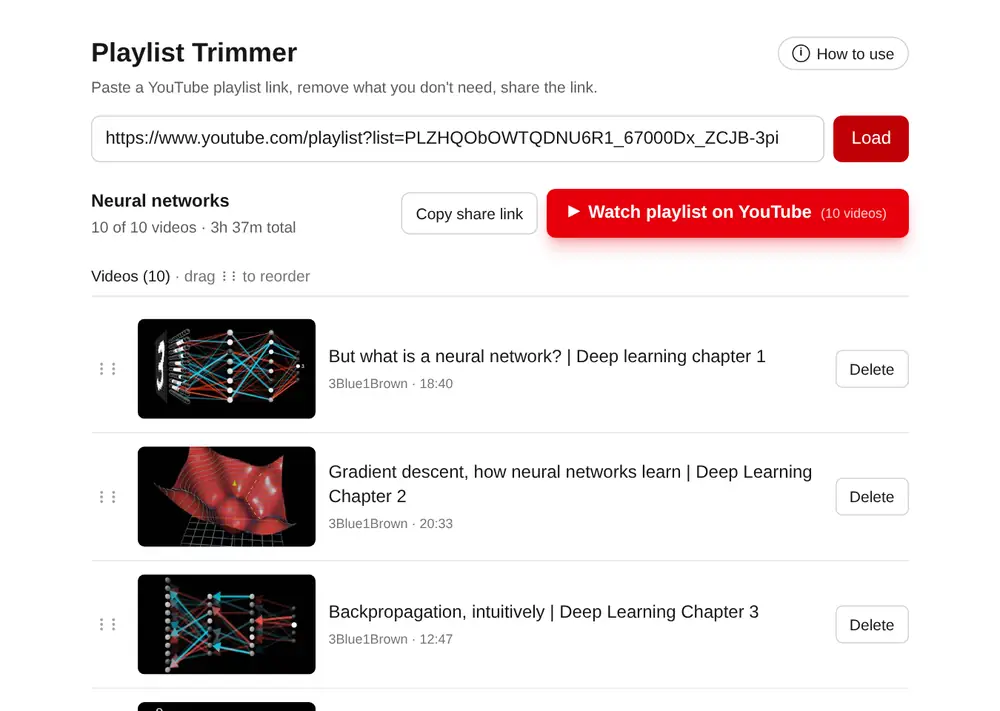
3. Watch the trimmed playlist
Press the red Watch playlist on YouTube button. It opens only the videos you kept, in your order, as one playlist in YouTube (first 50 if you have more), so the deleted ones never come back. On a phone it opens the YouTube app.
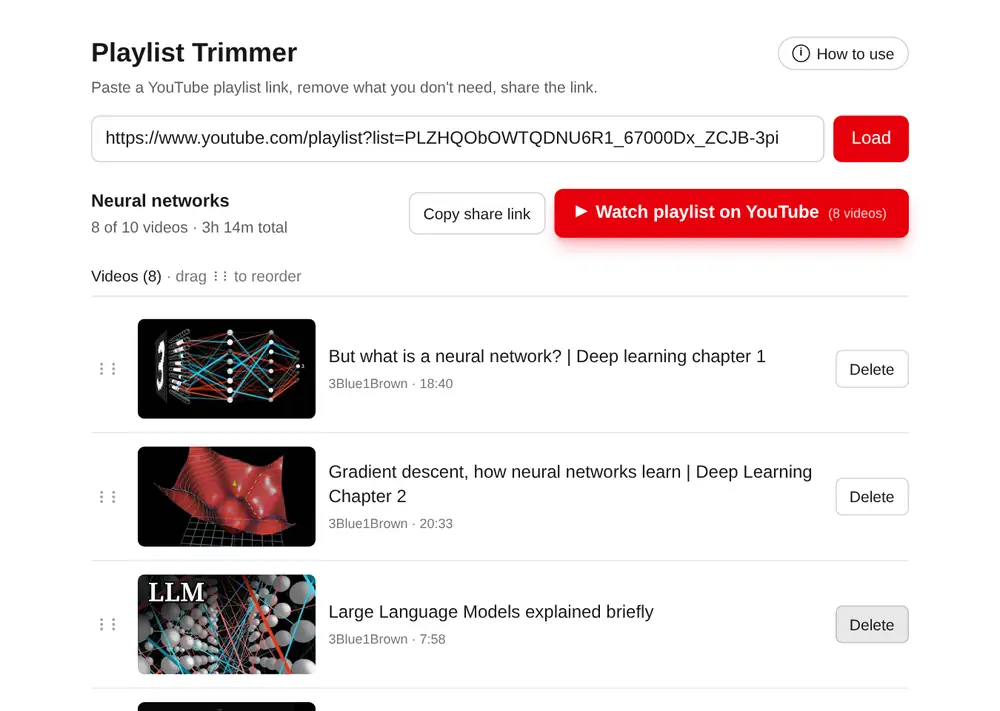
4. Deleted by mistake? Restore it
Deleted videos collect in a Deleted videos section at the bottom of the page. Press Restore to bring one back. The section is part of the share link, so whoever you share with can restore videos too.
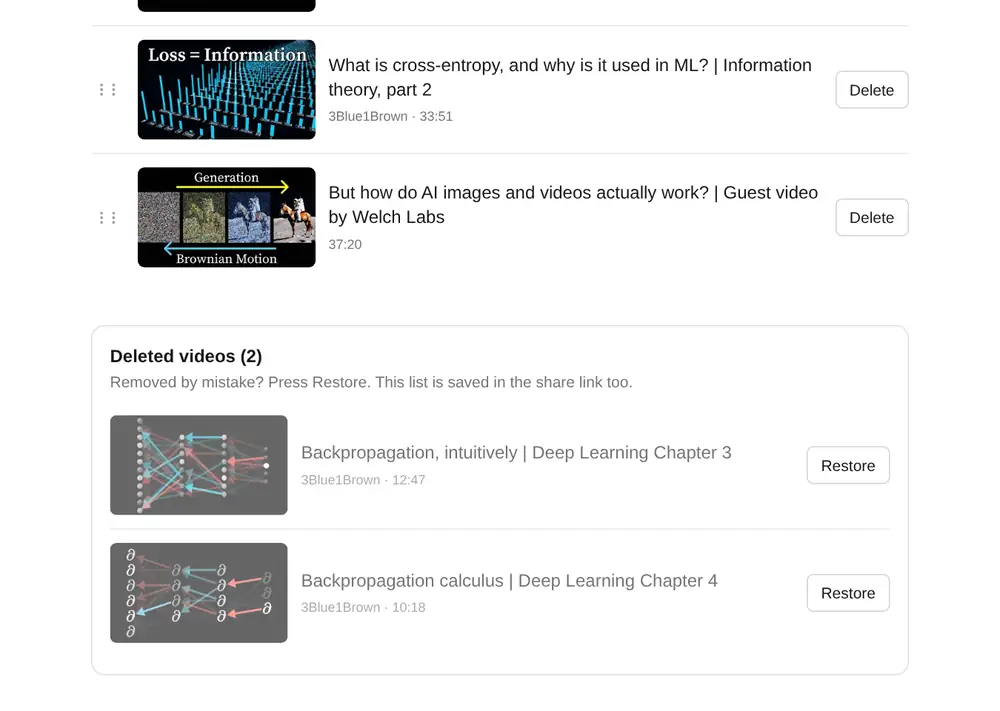
5. Share or save your version
Press Copy share link. The link contains the playlist, your deleted videos and your custom order, so anyone who opens it sees exactly your trimmed list. Nothing is stored on a server. Bookmark the link to keep your own progress; every change updates the address automatically, so copy it again after making new changes.
/?list=PLxxxx&x=deleted ids
Good to know
- Private playlists can't be loaded.
- If the playlist owner adds new videos later, they appear as kept.
- If loading fails once, press Load again; YouTube sometimes throttles requests.